


There’s always that slightly frustrating moment when a Python script runs flawlessly… but only for the person who wrote it. As soon as it needs to be sent to a client, a business team, or a recruiter, the well-oiled machine quickly breaks down due to dependencies, the terminal, and local configuration. The .exe file completely changes the game: the project moves from the realm of code to that of usage. Behind this shift, there’s more than just a command to run; there are also technical choices that influence stability, the size of the deliverable, and the user experience. This article will shed light on precisely these aspects.
Why convert a Python script to an .exe file?
A Python script can automate a task, generate a report, clean data, or launch a small business tool. As long as it remains tied to the developer’s workstation, its use remains limited.
The .exe format greatly simplifies distribution . A client, colleague, or non-technical team doesn’t have to install Python, manage libraries, or run a command in a terminal. They simply click, test the tool, and immediately see its benefits.
For a freelancer, this changes a lot. An executable makes the deliverable more concrete, simpler to evaluate, and easier to share. The project no longer resembles a simple script, but a ready-to-use tool.
Internally, the logic remains the same. The simpler the access to the tool, the faster its adoption progresses. Conversely, as soon as it becomes necessary to prepare a Python environment, retrieve dependencies, or correct installation errors, usage slows down.
What “converting Python to exe” really means
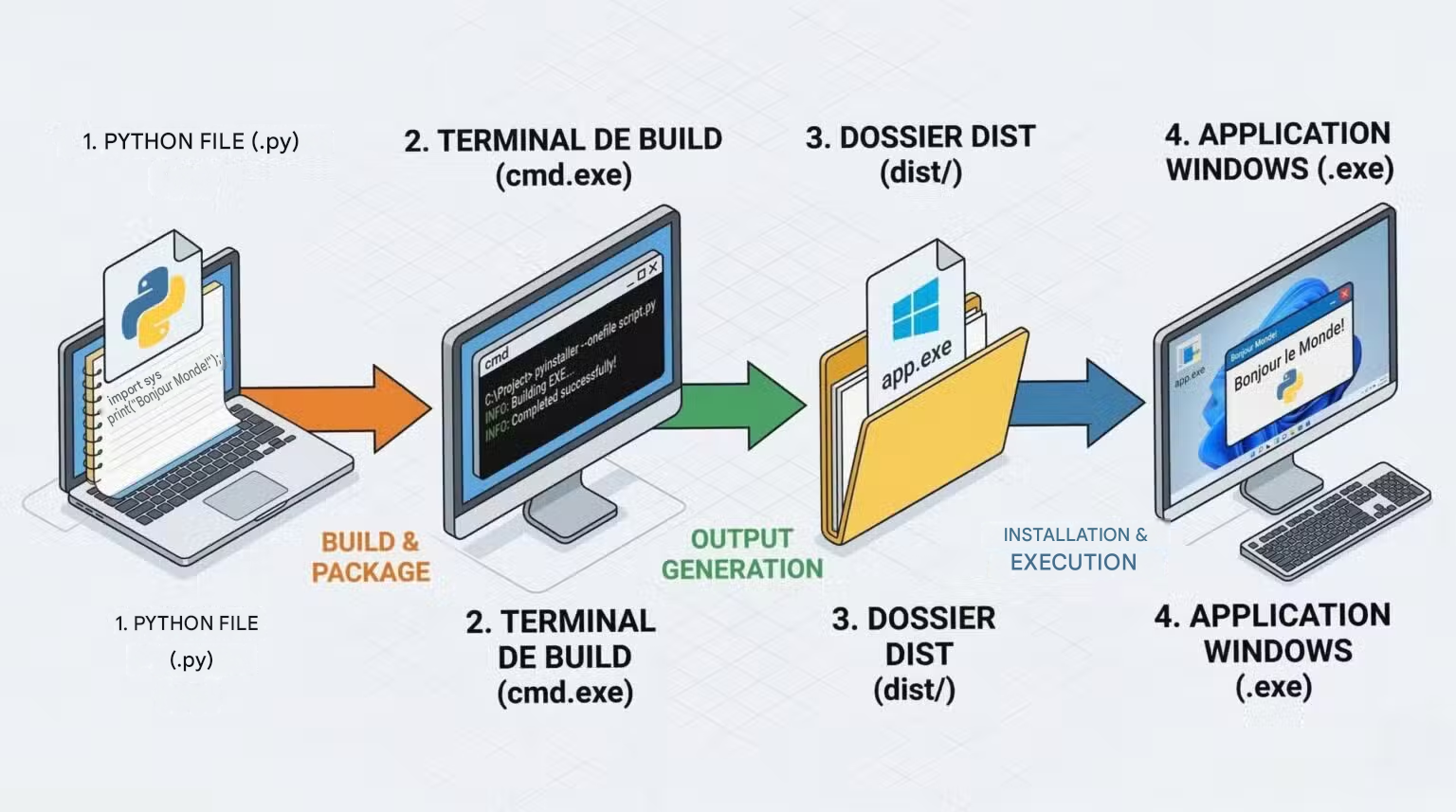
The expression can be misleading. You don’t simply transform a .py file into a Windows application by changing its extension.
In reality, we are preparing a package that includes:
- the Python script;
- the Python interpreter ;
- the project’s dependencies;
- sometimes additional files such as images, JSON , icons or system libraries.
In other words, it’s less about a simple conversion than about packaging.
Three concepts to distinguish
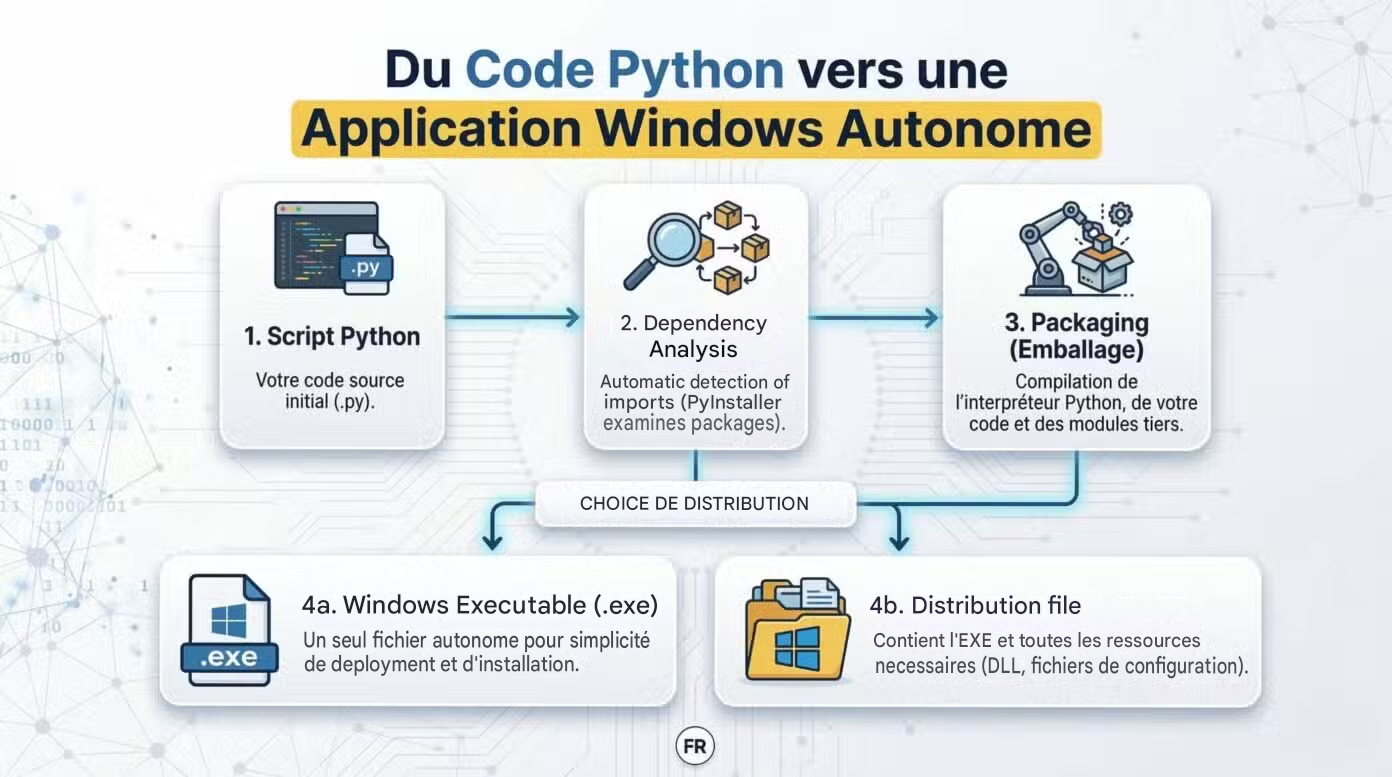
- The source script: the .py file written by the developer. It remains editable and is primarily intended for a pre-configured environment.
- The executable: the .exe file launched directly by the user on Windows.
- The distribution folder : a folder that contains the executable and all the files necessary for its operation.
A single .exe file often seems simpler to distribute. However, a distribution folder can sometimes prove more stable and easier to maintain, especially as the project grows.
What tools can be used to convert Python to an executable file?

PyInstaller: the simplest solution to get started
PyInstaller is often the most natural entry point. The tool remains well-known, accessible, and quick to learn.
It is well suited for:
- a simple script;
- a local utility;
- a small desktop application;
- a prototype to be delivered quickly.
PyInstaller can produce:
- either an executable file ;
- either a single .exe file.
This flexibility makes it very practical for getting started. However, as the project grows, build management can become less transparent.
cx_Freeze: a good option for more structured projects
cx_Freeze, on the other hand, becomes interesting when the project matures. It is better suited to more structured applications, with a clearer framework and more explicit configuration requirements.
This tool is well-suited when:
- the project is more like a small application than an isolated script;
- we want to have better control over the build configuration;
- A distribution folder seems more appropriate than a single .exe file.
In short, PyInstaller helps to go fast; cx_Freeze provides a more structured framework.
And auto-py-to-exe?
auto-py-to-exe deserves a mention, but in the right place. It doesn’t replace PyInstaller: it mainly adds a graphical interface on top of it.
It can be reassuring at first, especially for initial packaging. However, as soon as the project becomes more serious, it’s best to understand the build logic directly.
Summary table
| Tool | Level | Typical use case | Main limit |
| PyInstaller | Beginner to intermediate | Simple script, utility, small desktop app, quick prototype | Management becomes less transparent as the project grows. |
| cx_Freeze | Intermediate | A more structured project, a more focused application | A slightly less direct start-up |
| auto-py-to-exe | Beginner | First packaging via graphical interface | Depends on PyInstaller |
How to convert a Python script to .exe using PyInstaller?
The essential preparation of your workspace
A faulty script logically produces inoperable software. Therefore, meticulous testing of your source code is the essential first step.
Isolating libraries within a virtual environment ensures a clean compilation. This prevents the inclusion of unnecessary packages in your final deliverable.
Locating additional resources also requires careful attention. The generation tool needs the exact path to your images or configuration files.
Mini checklist before starting the compilation:
- The code runs without the slightest error on the development machine.
- The virtual environment lists only the required packages.
- The paths to external resources use a relative structure.
The step-by-step method with PyInstaller
 Library integration
The installation is performed directly via your terminal. This action links the solution to your project locally.
 The launch of a basic compilation
A simple command line triggers the process. The tool then generates two specific folders in your working directory.
The build folder serves as temporary storage for calculation files. In contrast, the dist directory contains your final creation.
Typical generated tree structure:
 MyProject
┣ build (intermediate calculation files)
┣ dist (the famous distribution directory with the executable)
┣  script.py (your raw code)
┗ script.spec (project parameters)
 Merging into a single executable
The `–onefile` option groups the entire project into a single clickable element. This format greatly simplifies sending your tool to a client via email.
 Adapting to the end user’s expectations
A black terminal window often frightens non-technical users. The `–noconsole` attribute hides this unsightly command prompt.
Adding a custom icon enhances the professional look of your delivery. Furthermore, the –add-data option integrates your images directly into the application.
Ready-to-use commands:
# Installation locale

pip install pyinstaller

# Génération d'un dossier basique

pyinstaller mon_script.py

# Génération propre (un seul fichier, pas de console, avec icône)

pyinstaller --onefile --noconsole --icon=logo.ico mon_script.py
How do I create an executable with cx_Freeze?
The detailed creation procedure
The initial setup of the tool
The core of the system is based on a file named setup.py. This document centralizes the metadata and indicates the entry point of the program.
Example of a minimum configuration:
from cx_Freeze import setup, Executable

setup(

    name="OutilFreelance",

    version="1.0",

    description="Automatisation métier",

    executables=[Executable("mon_script.py")]

)
The generation execution
The command `python setup.py build` orders the creation of the deliverable. The tool compiles the source code and assembles the elements into a new directory.
The inspection of this final file confirms the presence of all the resources required for the proper functioning of the software.
The most frequent problems during conversion

The program refuses to start on another computer
The omission of a third-party library causes an immediate crash. Similarly, a missing auxiliary file in the configuration blocks the boot process.
Using absolute paths (such as “C:\Users\Me\Images”) will render the software inoperable on your client’s machine. Validation on a clean machine remains the only guarantee of success.
The size of the archive surprises you
Integrating the Python interpreter inevitably increases the application’s size. Furthermore, the unintentional inclusion of unused libraries significantly increases the resulting file size.
Unoptimized graphics resources also add valuable megabytes to the final bill.
Methods to ensure a smooth deployment
Exporting as a complete folder sometimes resolves instabilities related to the single file format. Writing clear documentation details the target system requirements.
FAQ – Creating an executable (.exe) from Python
Can a Python script be transformed into a standalone .exe file?
Yes, but it’s not just a simple change of format. The build tool includes the script, the Python interpreter, and the dependencies needed to produce an executable Windows deliverable.
What is the simplest tool to get started with?
PyInstaller remains the most accessible entry point. It is very suitable for a simple script, an internal utility, or a prototype to be quickly delivered to a client or team.
Is it better to generate a single .exe file or an entire folder?
It all depends on the need. A single file seems simpler to share. On the other hand, a distribution folder often offers more stability and readability, especially when the project includes multiple resources.
Why does my executable work on my PC, but not elsewhere?
The most frequent cause is a missing dependency, a forgotten supplementary file, or a hard-coded path. This is why testing on a clean Windows machine remains essential before any delivery.