

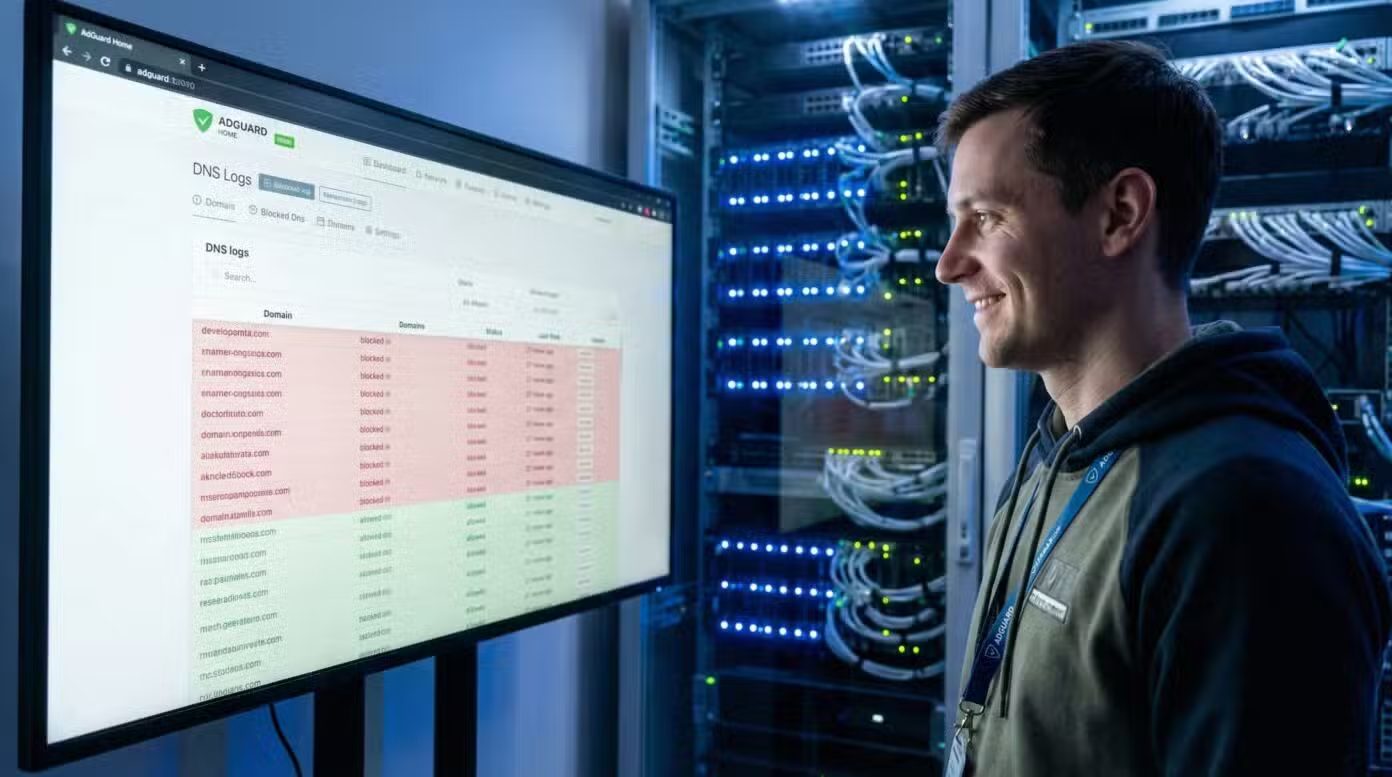
Open a website, wait two seconds, and see an ad for a mattress you never even looked for. Then another for a dubious app. Then a cookie wall. Web browsing sometimes feels like a shopping mall on a Saturday afternoon. AdGuard DNS offers a discreet escape route: filtering all this noise from the very first network request.
No software to install, no flashy interface: just a DNS server working behind the scenes. But is it really that simple? And more importantly, is it effective?
What is AdGuard DNS?

Behind its unassuming name, AdGuard DNS refers to a filtering DNS service : a solution that intercepts web requests before they reach their destination, to block unwanted content from the root.
In practical terms, it’s neither software nor a browser extension. AdGuard DNS operates at the network system level . Once activated on a device or router, it acts as a silent filter, positioned between the user and the internet. As a result, ads, trackers, and malicious domains simply don’t load .
Unlike a traditional ad blocker—such as uBlock Origin or AdGuard (software version)—this DNS doesn’t rely on analyzing content already loaded in the browser. It outright prevents certain content from being displayed by refusing to resolve domain names associated with advertising or tracking.
This “low-level” positioning offers several advantages:
- No local installation, no impact on browser performance
- Functionality is identical across all browsers and apps.
- Possible application on the scale of an entire network (via router)
How does DNS filtering work?

Each time a website is visited, the browser sends a request to a DNS server to translate the typed address (e.g., freelancerepublik.com) into an IP address that machines can understand.
A standard DNS simply responds to this request.
A filtering DNS, like AdGuard’s, intervenes at this stage to reject certain domain names identified as undesirable.
Simplified example:
- The user opens a news website.
- The site attempts to load scripts from ads.network.com .
- AdGuard DNS intercepts the DNS query for this domain… and blocks it.
- Result: the ad never appears, because the browser does not receive an IP address to contact.
What exactly does AdGuard DNS block?
AdGuard filtering is not limited to advertising.
The service relies on carefully maintained lists of domains, divided into different categories:
Advertisements
AdGuard DNS prevents the loading of the vast majority of advertising networks: banners, sponsored videos, pop-ups, native ads…
This includes visible ads, but also background scripts used for targeting or retargeting.
Trackers
The service also targets areas related to the collection of behavioral data :
- Tracking pixels
- Third-party statistics are too intrusive.
- Browser fingerprinting scripts
This blocking enhances privacy, especially on mobile where extensions are limited.
Phishing
AdGuard DNS is able to identify many domains known to impersonate legitimate services (banks, e-commerce platforms, etc.) and interrupts the connection before any interaction.
Malware
Some remotely hosted scripts attempt to infect machines through browser vulnerabilities or malicious downloads. AdGuard DNS neutralizes them at the source.
Adult content (family mode)
By activating “Family Protection” mode , the service applies additional filtering:
- Adult websites
- Gambling platforms
- Forums or content deemed inappropriate
This mode also activates an enhanced security filter , blocking more potentially dangerous domains.
Is AdGuard DNS really free?

Yes, AdGuard DNS offers a 100% free and public version , accessible without registration. It comes in two profiles:
| Profile | Recommended use | Blocking applied |
| Standard | Personal browsing, work | Advertisements, trackers, phishing, malware |
| Family Protection | Shared devices, children | Same as above + adult content |
These public servers can be used directly, simply by entering them in the device’s DNS settings.
Custom version: AdGuard DNS with account
AdGuard also offers a free, customized version , accessible after registering on their portal. It allows, among other things:
- To create custom filters
- To add custom blocklists
- To have usage statistics
- To choose between DoH, DoT or classic DNS
This option is better suited to technical profiles or advanced users who wish to adjust their filtering on a case-by-case basis.
Where can I find good AdGuard DNS public servers?
Before any configuration, it’s essential to use the correct addresses . AdGuard offers several types of public servers, suited to different uses.
| DNS type | IPv4 address | IPv6 address | Secure protocol | Blocking applied |
| Standard | 94.140.14.14 / 94.140.15.15 | 2a10:50c0::ad1 / 2a10:50c0::ad2 | Yes (DoH, DoT, DNSCrypt) | Ads, trackers, malware, phishing |
| Family Protection | 94.140.14.15 / 94.140.15.16 | 2a10:50c0::bad1 / 2a10:50c0::bad2 | Yes | + Adult content and forced Safe Search |
| Unfiltered (Standard) | 94.140.14.140 / 94.140.14.141 | 2a10:50c0::1:ff / 2a10:50c0::2:ff | Yes | No censorship — just an alternative DNS |
 DoH (DNS-over-HTTPS) and DoT (DNS-over-TLS) are supported, for end-to-end encryption of your DNS queries.
DoH addresses are of the type:
- https://dns.adguard-dns.com/dns-query (Standard)
- https://dns-family.adguard-dns.com/dns-query (Family)
Configure AdGuard DNS on a smartphone

Setting up AdGuard DNS on mobile requires neither an app nor registration. The procedure simply depends on the system used.
On Android (private DNS)
Since Android 9 (Pie), a “Private DNS” option is available:
- Open network or connection settings
- Access the private DNS section
- Select “DNS provider hostname”
- Enter: dns.adguard-dns.com (or dns-family.adguard-dns.com for family mode)
 This mode is active DoT (DNS over TLS), encrypted, stable, without the need for an app.
On iPhone (iOS 14+)
iOS does not allow changing the system DNS globally with DoH or DoT without going through a profile configuration .
Two solutions:
- Official AdGuard configuration profile : downloadable from their website (easy and clean)
- Manual DNS configuration in Wi-Fi (unsecured, IPv4 only)
Procedure via Wi-Fi:
- Go to Settings > Wi-Fi
- Press the “i” of the network used
- Scroll down to Configure DNS
- Switch to Manual
- Delete the existing DNS records, enter 94.140.14.14 and 94.140.15.15
 This mode does not encrypt requests.
Configure AdGuard DNS on a computer
Regardless of the system, the idea remains the same: replace the default DNS with those of AdGuard .
On Windows
- Open Control Panel > Network and Internet > Network Center
- Click on Edit map settings
- Right-click on the active connection > Properties
- Select Internet Protocol version 4 (TCP/IPv4) > Properties
- Check “Use the following DNS server address”:
- Preferred DNS: 94.140.14.14
- Auxiliary DNS: 94.140.15.15
- Confirm and restart the connection
On macOS
- Open System Preferences > Network
- Select the active connection > Advanced
- Go to the DNS tab
- Click on the “+” button and enter:
- 94.140.14.14
- 94.140.15.15
- Remove the old DNS settings if needed.
- To validate
On Linux (Ubuntu / Debian)
On Linux , you need to modify the /etc/systemd/resolved.conf file :
sudo nano /etc/systemd/resolved.confAdd :
DNS=94.140.14.14 94.140.15.15

FallbackDNS=8.8.8.8

DNSOverTLS=yes
Then restart the service:
sudo systemctl restart systemd-resolvedHow do I configure AdGuard DNS on a router?
The advantage of using the router? Protecting all devices on the network at once , without individual intervention.
Example: Asus router (ASUSWRT interface)
- Access the interface via 192.168.1.1
- Go to WAN > DNS
- Uncheck “Connect to DNS automatically”
- Enter :
- DNS 1: 94.140.14.14
- DNS 2: 94.140.15.15
- To safeguard
With DNSCrypt
Some firmwares (e.g., OpenWRT, DD-WRT) or advanced routers allow you to enable DNSCrypt (DNS encryption + IP anonymization). AdGuard is compatible.
Advanced configuration required:
- Download the AdGuard DNSCrypt files
- Configure the resolver via dnscrypt-proxy or a dedicated interface
On operator box
French ISP boxes often block manual DNS settings.
Solution :
- Switch to “bridge” mode (if available) to connect a personal router
- Or use an intermediary device (e.g., Raspberry Pi)
Check that everything is working correctly
Once configured, a few quick checks are all it takes to ensure that filtering is active:
- Test your DNS settings : Visit https://whoismydns.com
→ You should see AdGuard listed as a DNS provider - Official diagnostic page : https://adguard-dns.io
→ Clear summary of your DNS connection status - Ad test : Go to a website heavily loaded with ads (newspapers, streaming, torrents)
→ If the ads disappear, it means the DNS is doing its job
AdGuard DNS vs AdGuard Home: what are the differences?
The confusion often arises in technical discussions: AdGuard DNS and AdGuard Home have the same name, pursue the same objective — filtering unwanted traffic — but are not aimed at the same audience.
One functions as an off-the-shelf service.
The other transforms your network into a testing laboratory.
What is AdGuard Home?
AdGuard Home is a self-hosted, open-source software . It installs on a local machine — Raspberry Pi, Linux server, NAS, VM — and acts as an internal DNS resolver for the entire network.
In practice, instead of using AdGuard’s public servers, you deploy your own filtering DNS server at home or in your infrastructure.
Once installed:
- All devices on the network pass through it
- You choose the blocklists
- You can view DNS queries in real time.
- You create your own rules
Control is on a whole new level! While AdGuard DNS applies standardized filtering, AdGuard Home gives you the keys. More freedom, but also more responsibility.
For a freelancer who wants to quickly filter their traffic on laptop and mobile, AdGuard DNS more than covers the need.
For a DevOps profile , network admin or homelab enthusiast, AdGuard Home opens up a richer field of experimentation: detailed statistics, control by device, integration with other network tools.
The choice therefore depends less on raw performance than on the level of control desired .
Frequently Asked Questions (FAQ) about AdGuard DNS
Is AdGuard DNS legal?
Yes. Changing your DNS server is a standard network configuration step. No law prohibits the use of a filtering DNS server. However, bypassing restrictions imposed by an employer or institution may violate internal regulations. In other words: personal use is permitted, but professional use should be verified.
Does this replace a browser ad blocker?
Not entirely. AdGuard DNS blocks advertising domains before they load. However, it doesn’t remove elements embedded directly in a page’s code. A browser blocker remains more precise for:
- Hide empty ad spaces
- Block certain embedded scripts
- Manage site-by-site exceptions
The two approaches complement each other.
Why are some websites no longer opening?
Two possible causes:
- The domain is on a blocklist
- The site loads resources from a blocked advertising domain
The DNS then refuses the resolution. Solution: temporarily test an unfiltered DNS server to confirm, or switch to a custom version that allows exceptions.
Can AdGuard DNS be used with a VPN?
Yes, but the order of application matters. If the VPN forces its own DNS servers, AdGuard DNS no longer applies. Some VPNs allow custom DNS configuration. Others don’t. In a freelance context, especially during client assignments where a VPN is mandatory, it’s best to check the imposed DNS policy.
What is the exact DNS address of AdGuard DNS?
For the standard profile (IPv4):
- 94.140.14.14
- 94.140.15.15
For family mode:
- 94.140.14.15
- 94.140.15.16
For secure DoH:
- https://dns.adguard-dns.com/dns-query
These addresses rarely change, but consulting the official documentation guarantees up-to-date information.