

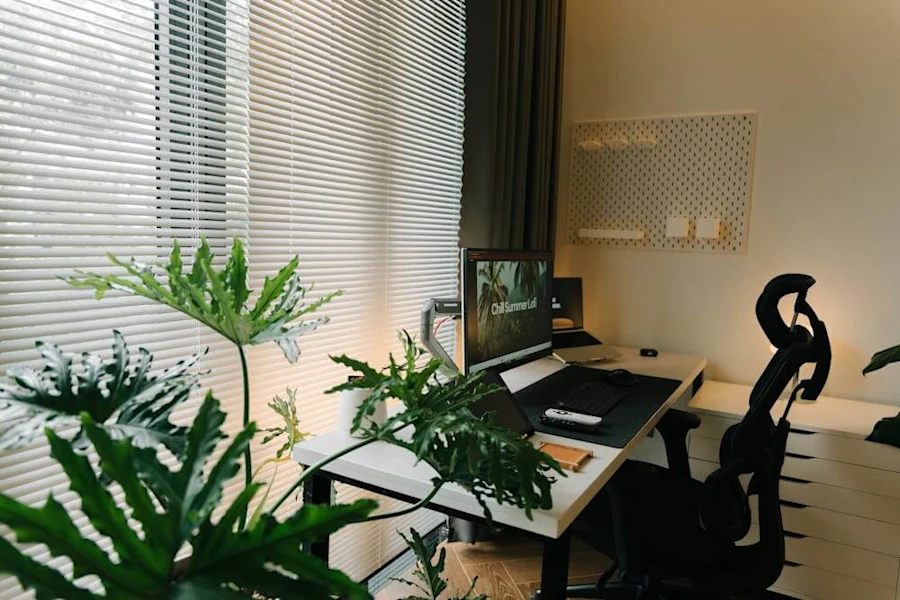
When employees work from home, they must still have access to office computers. At the same time, IT teams must be cautious when granting remote access, especially on personal devices.
The challenge is much more than simply “enabling remote desktop .” Remote access must be secure and controlled so that company systems and work data remain protected, and IT teams have visibility and control over who can connect.
So, how can IT teams configure secure remote desktop software for remote employees and BYOD devices? Let’s examine how to assess access scenarios, configure devices, and support secure remote work.
What remote desktop access means in a home office
Remote desktop access allows users to connect to their work computer from a home device, enabling them to access and control it remotely. This keeps applications, files, and other company systems on the work computer while supporting BYOD (Bring Your Own Device) and allowing employees to work from anywhere.
Without remote desktop access, remote employees may need to bring their work devices with them or sync company files to a personal device. Each option can raise security and data management concerns, especially when personal devices are used to access proprietary files or projects. With remote access, work applications and files can remain on the work computer instead of being copied to a personal device, giving IT a more controlled way to support working from home.
Why should the IT department manage the configuration, not the end user?
When setting up remote desktop access, who should manage it – the IT team or the owner of the personal device?
Because remote desktop controls access to work devices, data, and projects, it should be treated as an IT-managed workflow. This helps ensure consistent device configuration and policy enforcement for all users, so that each personal device receives the necessary permissions and access controls.
In fact, there are several reasons why the IT department should manage the configuration of remote access:
- IT support should be able to approve access based on the user’s role and the company’s needs.
- Work computers must be securely configured before remote access is enabled, which is the responsibility of IT.
- Personal devices may not meet the same security standards as company-owned devices, requiring supervision and management by the IT department.
- The IT department must have a way to revoke access when a user changes roles or leaves the company.
- Remote access must be logged and monitored for liability reasons.
- Support teams need a consistent installation process, rather than ad-hoc workarounds for users.
What IT needs to confirm before configuring remote desktop access
When IT teams enable remote access, they must ensure that all necessary tools and settings are in place. Without them, remote access can become inconsistent, unreliable, or, worse, lack cybersecurity. Be sure to follow each of these steps before configuring remote desktop access:
- Confirm the user’s access requirements: Some users only need temporary access, while others will need to log in daily. Verify whether the user requires daily, temporary, or after-hours access, as well as access to specific software on their devices.
- Confirm that the work computer is ready: When employees are working remotely, they should be able to connect to their remote device without any issues. Ensure that the work computer is powered on, up to date, connected to the internet, and configured for remote access. This often requires enabling unattended remote access so that the user can connect even when another employee is not present.
- Confirm that the personal device can be used safely: Security is non-negotiable. IT teams must ensure that the device the employee is using is secure, including being ready for Multi-Factor Authentication (MFA), and that the company supports BYOD access.
- Confirm which systems and files the user needs: Users don’t always need access to everything when working remotely. Instead, focus on least privilege access and allow users to access the tools and network segments they need without granting them full access.
- Confirm the departure process: Removing devices is just as important as allowing them to connect. IT teams should know how to revoke access when necessary, so devices don’t remain connected indefinitely.
Choose the right remote desktop access method.
When setting up remote desktop access, how do you choose the best method for your business needs? There are several ways to establish remote access, so organizations need to choose the one that best suits their employees and work processes.
Integrated remote desktop tools
Some devices include built-in remote desktop tools, such as Windows Remote Desktop. This can work in some environments, but often requires additional configuration and tools that work better in IT-controlled environments. Furthermore, built-in tools can be more difficult to standardize when users connect from unmanaged personal devices or from different operating systems.
VPN-based access
Virtual private networks (VPNs) are commonly used to give remote users access to internal resources. However, VPNs often require broader network access planning than a remote desktop workflow for a single user. If an employee only needs access to an assigned workstation, managed remote access can offer a more focused approach without giving the user unnecessary access to other systems.
Managed Remote Access Software
Dedicated and managed remote access software is generally the most effective way to provide remote desktop access. It allows teams to easily manage users, permissions, devices, and authentication from a central console, while monitoring session activity to maintain security and accountability. With a dedicated remote access solution like Splashtop, employees can securely and seamlessly access their work computer from anywhere, while keeping everything on it secure.
How to configure remote desktop access for a home office user
Let’s get straight to the point: how can IT teams configure remote desktop access for home users? You can efficiently set up secure remote access by following a few simple steps:
- Install the remote access agent on the work computer: First, prepare the work computer for remote connections. With Splashtop, the IT department installs the Splashtop Streamer on the work computer and then assigns access to the user via the administration console.
- Adding or inviting the user: Next, the IT department must invite the user to create an account via the remote access platform. It is important that each user has their own account, rather than sharing credentials or creating generic accounts, so that each device remains separate and secure.
- Assigning access permissions: Users should have access to the work computer or group of computers they need, but should not have broad access to all devices. Therefore, setting up specific access permissions is essential.
- Require strong authentication: Maintaining account security is essential. It is important to use remote access software with multi-factor authentication to ensure that only verified users can access work computers.
- Configure session settings: Ensure that users can access the tools they need, such as file transfer, remote printing, session recording, and more.
- Test the connection from the personal device: Users should test the connection to confirm that they can connect from home, use the applications they need, and disconnect properly.
- Documenting the installation: Maintaining records is important. The IT department should record who has remote access, which computers they can connect to, and how access can be reviewed.
Best security practices for remote access to personal devices
When users access work computers from personal devices, IT must implement clear security controls. The goal is to give employees reliable access to the work computer while minimizing unnecessary exposure from unmanaged or personal devices.
Best practices include:
- Require MFA for remote access accounts to ensure that only authenticated users can access the remote device.
- Avoid exposing work computers directly to the Internet to reduce the risk of cyberattack.
- Do not share your remote access credentials to maintain account security and accountability.
- Give users access only to the computers they need to reduce the risk of unauthorized access.
- Keep the work computer up-to-date and protected to support security, audit readiness, and internal policy requirements.
- Use session logging, when available, to identify suspicious activity and stay audit-ready.
- Regularly review remote access permissions to ensure that users only have access to what they need.
- Remove access immediately when it is no longer needed.
- Avoid storing company files on personal devices (unless explicitly approved) to reduce the risk of theft or loss.
Common mistakes to avoid when setting up a remote desktop
However, when configuring remote desktop access, pay attention to common mistakes. These can easily go unnoticed but have major consequences for cybersecurity and efficiency, so IT teams should be aware of them.
Common mistakes include:
- Enabling access without an approval process can lead to unmanaged and unmonitored access.
- Relying on shared credentials reduces accountability and increases the risk of unauthorized access.
- Providing broad network access when the user only needs one computer.
- Forgetting to withdraw access after the end of a temporary need, thus leaving the device or network exposed and accessible.
- Allow users to configure their own remote access tools, rather than relying on a trusted and properly configured remote access solution.
- Ignoring performance requirements such as multi-monitor usage, audio, or graphics quality can create a worse remote working experience.
- Treat unsecured personal devices in the same way as managed corporate devices.
How Splashtop Helps IT Teams Manage Remote Desktop Access
Secure remote work requires a robust remote desktop solution that allows employees to work effectively from anywhere. That’s where Splashtop comes in.
Splashtop is a remote access solution that allows employees to access their work computers from any device, anywhere, with a suite of advanced security features to keep accounts and data secure. This enables efficient remote work while keeping data and files safe on the work computer, regardless of where employees are working.
Splashtop offers:
1. Secure access to work computers from anywhere
With Splashtop, users can remotely access their assigned work computers from personal or company-owned devices. Work applications, files, projects, and data remain on the work computer, helping to reduce the need to store business data locally on a personal device.
2. Centralized management of users and permissions
Splashtop allows IT teams to manage users, assign access, adjust permissions, and grant or revoke access from a single console. This centralized control helps IT reduce unnecessary access, keep permissions aligned with user roles, and remove access when it’s no longer needed.
3. High-performance remote sessions for daily work
Splashtop is designed for fast and seamless remote connectivity for everyday business needs. It features functionalities designed to make remote work as easy as working in the office, including multi-monitor workflows, remote printing, and file transfer. All of this results in smooth and efficient remote sessions.
4. Support for remote and hybrid teams
Splashtop is designed to support distributed teams, whether they work in multiple offices, remotely, or in a hybrid model. There’s no need to rely on ad hoc tools or have employees configure their own remote access tools, as Splashtop includes a complete suite that allows employees to work from anywhere.
When to use Splashtop remote access versus Splashtop Enterprise
Splashtop offers several options for businesses that need secure remote access, remote support, and endpoint management. The right solution depends on whether your organization needs simple access to assigned workstations, broader IT support workflows, centralized enterprise controls, or endpoint management capabilities such as updates, inventory visibility, and automation.
With that in mind, here are some recommendations to consider when reviewing Splashtop’s offers:
- When employees need secure access to their assigned work computer, Splashtop Remote Access works perfectly.
- You will want to use Splashtop Enterprise when your organization needs advanced security, management, support workflows, and expanded IT control.
- If the IT department also needs endpoint management capabilities such as patching, inventory visibility, and automation, you can go even further with Splashtop AEM (Autonomous Endpoint Management).
Remote Desktop Access Installation Checklist for IT Teams
If you’re ready to take the plunge into remote desktop access, make sure you deploy it properly for all your employees who need it. Fortunately, with a little planning, it’s easy to enable employees to work from anywhere. Just follow this handy checklist, and you’ll be all set:
- Identify the users who need remote access and what they will need to use it.
- Check the work computer to confirm that it is ready for remote access.
- Choose a managed remote access method, such as Splashtop.
- Install the remote access agent on the work computer.
- Invite the user to create an account and log in via the administration console.
- Grant access only to approved computers.
- Configure multi-factor authentication to secure accounts.
- Test the session from your personal device.
- Document access ownership and review the schedule.
- Remove access when it is no longer needed.
Get started with Splashtop.
Setting up remote access to the office for employees working from home isn’t a simple matter of quick technical adjustments. It’s an IT workflow designed to establish secure and efficient remote connectivity, providing users with a reliable way to access their work computers while IT maintains control over permissions, visibility, and more.
If you want to support a remote, hybrid, or otherwise distributed workforce, you need a robust and reliable remote access solution. With Splashtop, you’ll have the tools and features needed to easily access work devices on the go, with the security and reliability that businesses of all sizes demand.